
Getting your call data into Pipedrive from CallRail presents some unexpected challenges. This guide breaks each step down and shows a working Zapier Zap that automates the entire process.
You’ll need the following:
- Access to CallRail
- Zapier Account
- Pipedrive Credentials
Zap Setup
Login to your Zapier account and create a new Zap. Name it something memorable like “New Call CallRail to Pipedrive.”
Give your Zap a descriptive name for easy reference.

Next we’re going to add a trigger to kick off the Zap. In this case, we’re using CallRail Call Started trigger. This allows our Sales Development Representatives to work on the deal while still on the call. We’re going to create another Zap later that triggers on call complete to do some data cleanup.
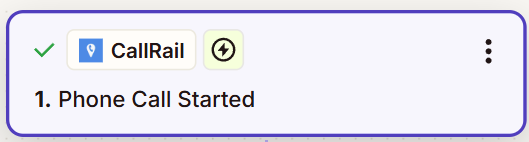
Account Connection
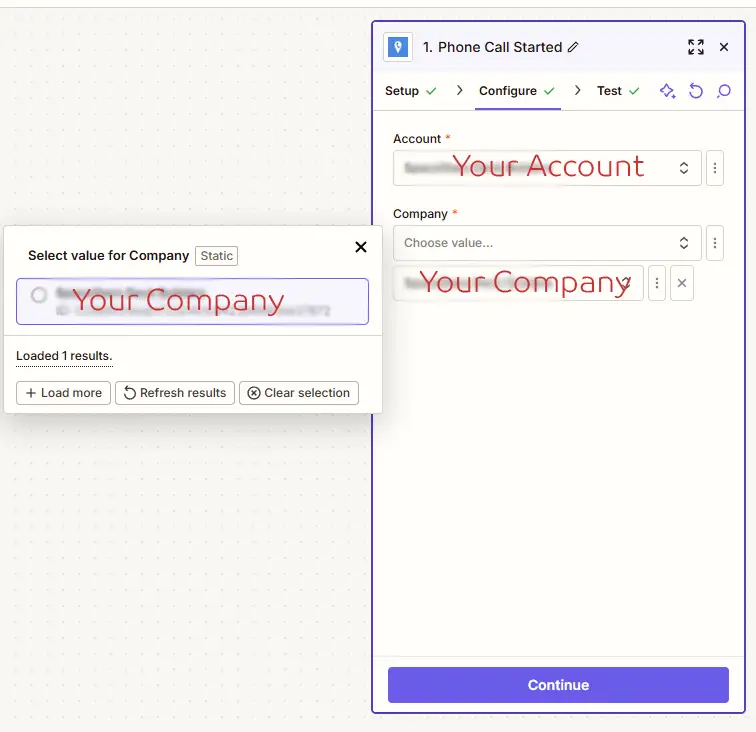
Next connect your CallRail Account to Zapier.
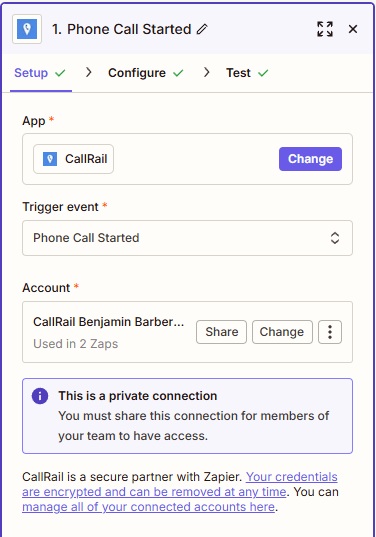
Select your Account and Company to connect to CallRail.
Test Account Connection
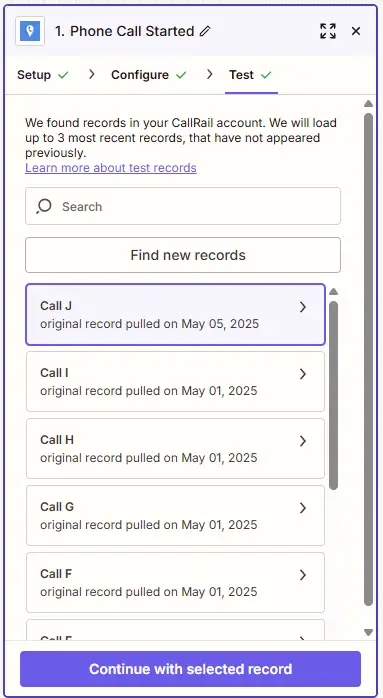
Test the connection. You can select a record for the test if you have calls in your CallRail account:
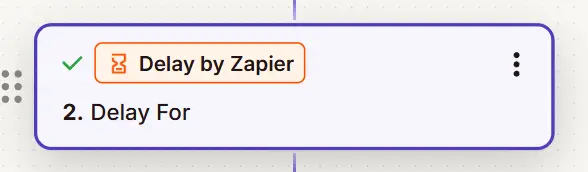
Next we’re going to add a delay to allow for the data to propagate. We found that without the delay, the filter in the next step behaved unexpectedly. You can try it without delay for your setup and see if it works as intended.
Filter the Calls
For our purposes, we only wanted Inbound First Time Callers. If you don’t set this filter, the remaining steps will fire, eating up Zap task quota and placing unnecessary load on your CRM.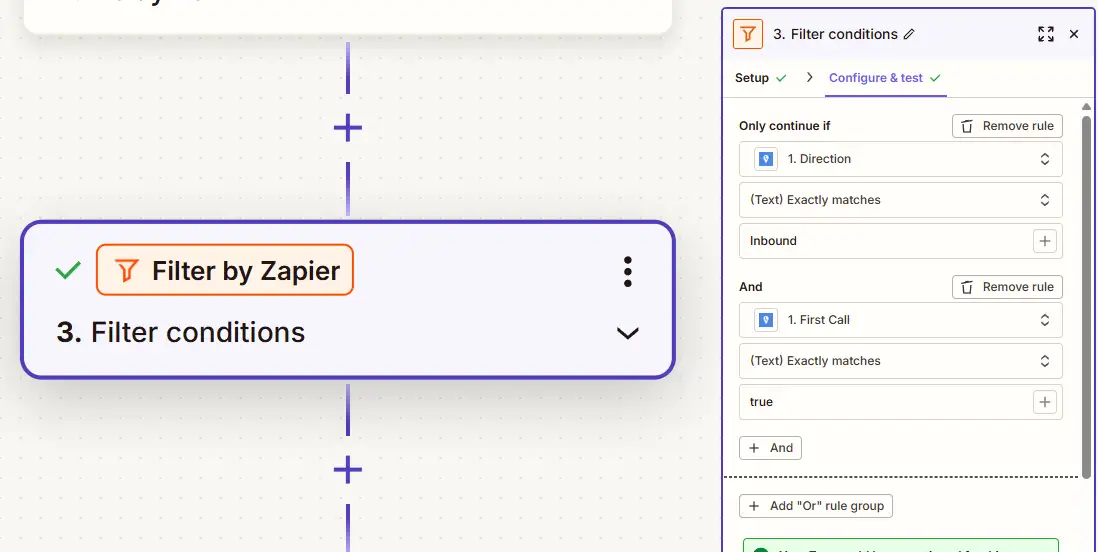
Find Persons in Pipedrive
Next we’re going to see if the person already exists in Pipedrive. This will prevent duplicate records being created. Deduplication in Pipedrive is an ongoing issue and takes up cycles, is prone to errors, so we avoid creating duplicate records when possible.
We’re going to search on the Phone number. We store our phone numbers in Pipedrive in the same format as CallRail. If you’ve chosen a different format like +1(555) 555-5555 you can use a transform function prior to the lookup.
We also map the full name sent over by CallRail to the Person Name in Pipedrive. 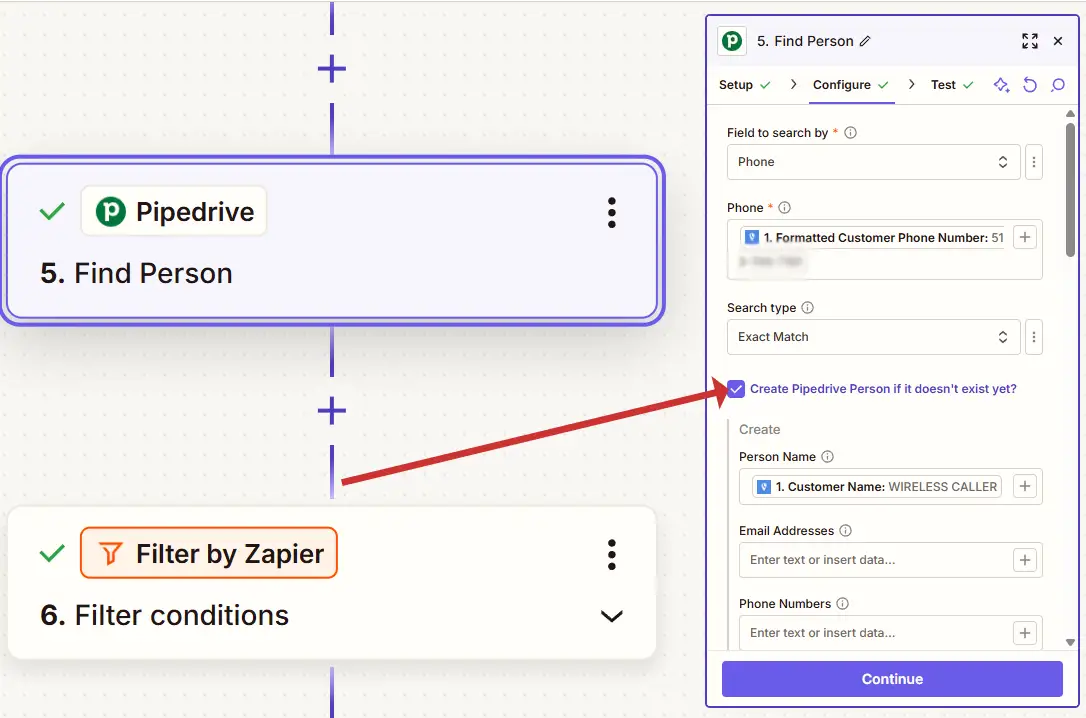
If you select the checkbox “Create Pipedrive Person if it doesn’t exist yet?” If you don’t check this you need to add another step “Pipedrive Create Person” after this step.
Marketing Parameters
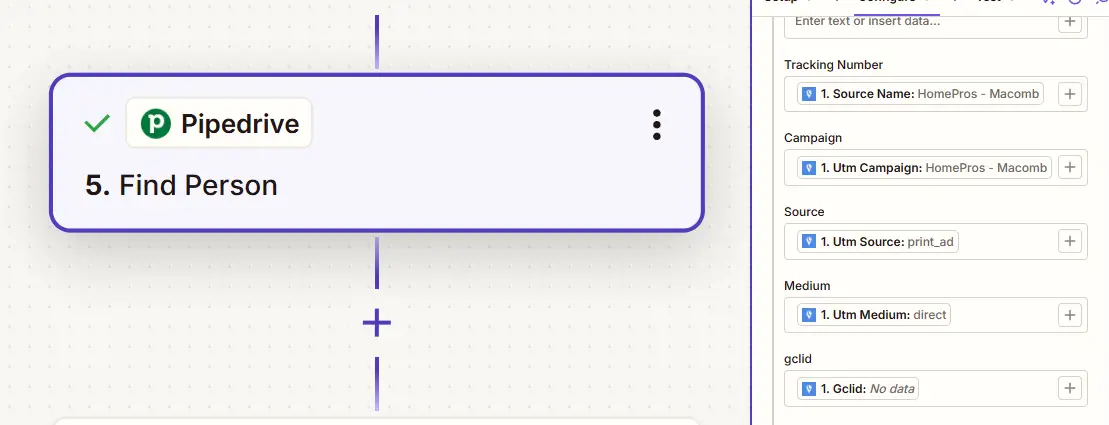
For this client, we wanted to be able to do reporting inside Pipedrive based on source medium. Activities like Booked Appointments, Demos, and Sales. By passing the marketing parameters, we can use Pipedrive’s built in reporting features.
You need to create these fields as custom fields in Pipedrive, you can learn how to do that here:
https://support.pipedrive.com/en/article/custom-fields
Once the custom fields are created you can use them in Zapier. You may need to refresh the fields by clicking the circling arrow at the top.
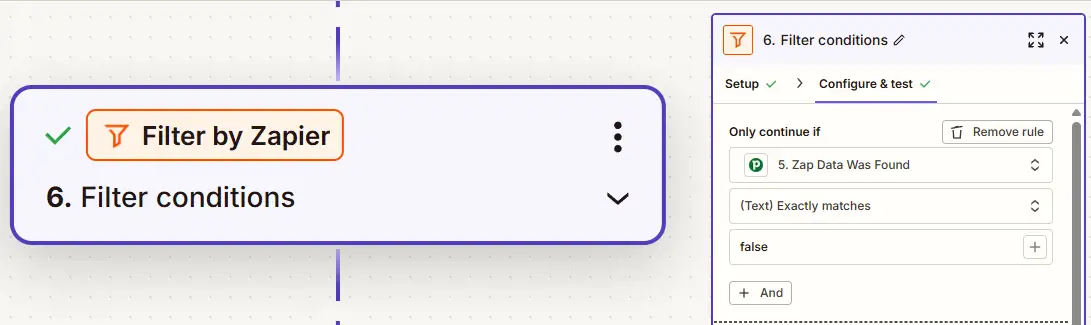
Next we’re going to filter based on step 5, double checking that the person was not found.
Seal the Deal
For our final step, we can now safely add the deal and assign it to the person we created in step 5.
Add a Pipedrive Create Person step.
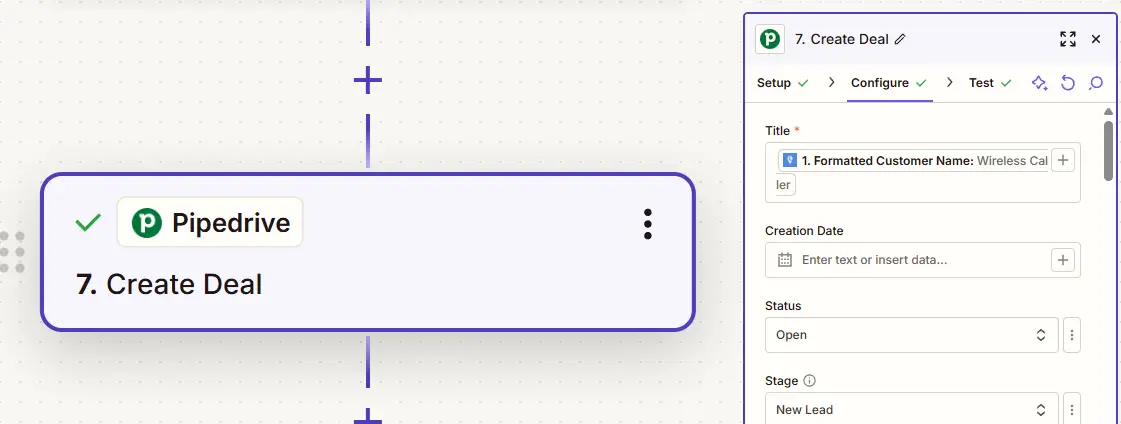
We’re going to map similar fields as the Find Person step. We map the Customer Name to the Title of the deal in Pipedrive.
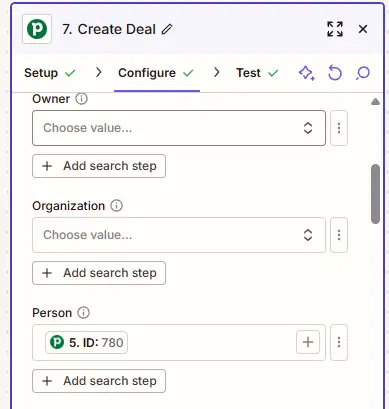
Be sure to connect the deal to the person by using the Person ID from Step 5 in the Person ID field for the deal created in this step:
Be sure to map your markeing parameters to the deal as well. We do most of our reporting on Deals, so it’s important these are mapped correctly:
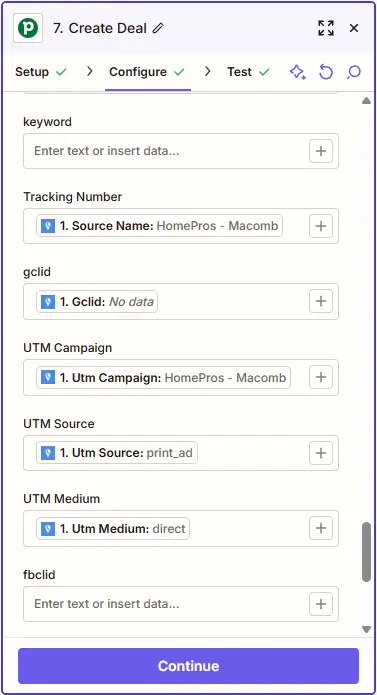
For this client the most important marketing parameters are:
- gclid
- fbclid
- msclkid
- UTM Source
- UTM Medium
By mapping ad platform tracking ids such as gclid, fbclid, and msclkid, we can send offline conversions back to ad platforms like Google Ads, Mete Ads, and Microsoft Ads.
For this client the two big offline conversions are Booked Appointment and New Sale. We can use the Final Price Value to calculate a lead value and report that to ad platforms. With this revenue data imported, we can unlock powerful bid strategies like Return on Ad Spend (ROAS).
If you want to learn how to send an offline enhanced conversion from Pipedrive to Google Ads, we’re covering that it our next post.
Have questions or need help. Contact Us! We’d love to help.