

We’re running Promptwatch for AI performance monitoring for a few of our clients. One issue cropped up was how to send data from our server to Promptwatch via api. This particular client is on Flywheel, so we were looking at either the Fastly or Manual configuration options. (Flywheel offers Fastly, which this particular client had turned on.)
NOTE: If you are using one of the listed CDNs, and have access, you should use the instructions from Promptwatch. The CDN serves cached pages of your site, and if you follow our guide, crawler activity may not register. These instructions are for sites that do not use a CDN.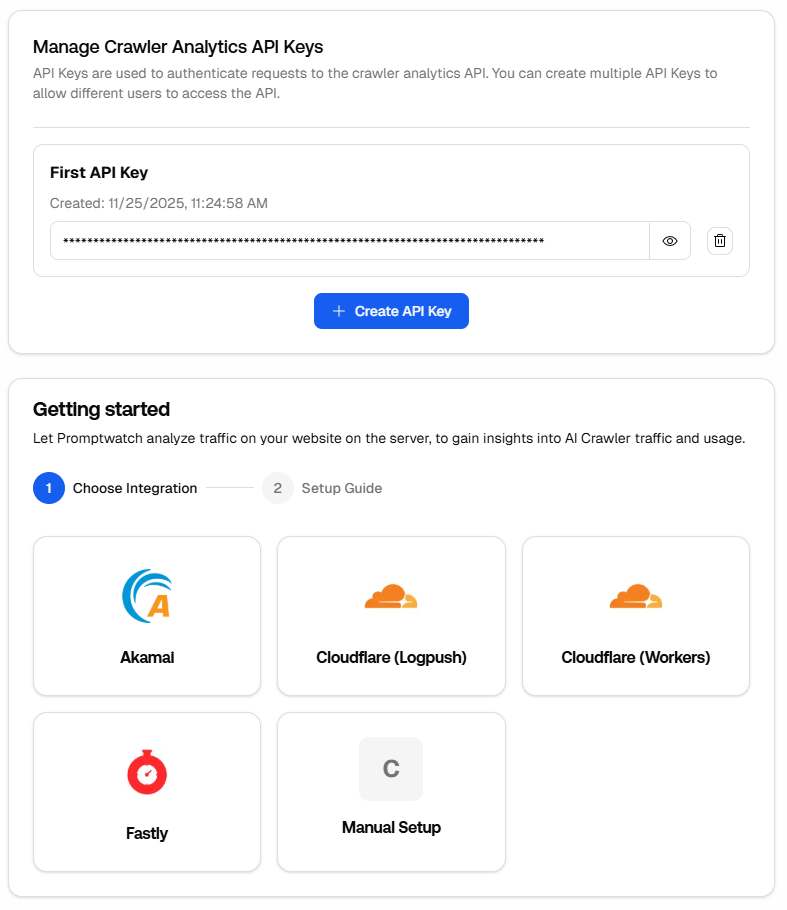
Flywheel support suggested we use CloudFlare workers, which we attempted to do. Unfortunately, you need to have your DNS pointed to CloudFlare for this to work, so this ended up being a dead end.
Manual Setup Using WordPress Custom Code
We decided to create our own custom PHP that looks for AI crawler activity and posts to Promptwatch’s api endpoint.
Install Code Snippet Plugin
First you need to install the Code Snippets plugin on WordPress: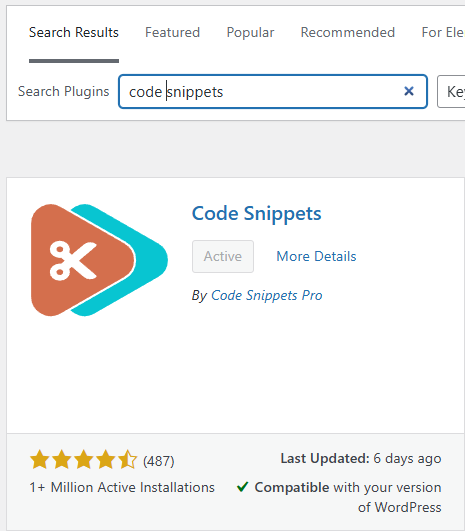
Create New Snippet
Next create a new snippet:
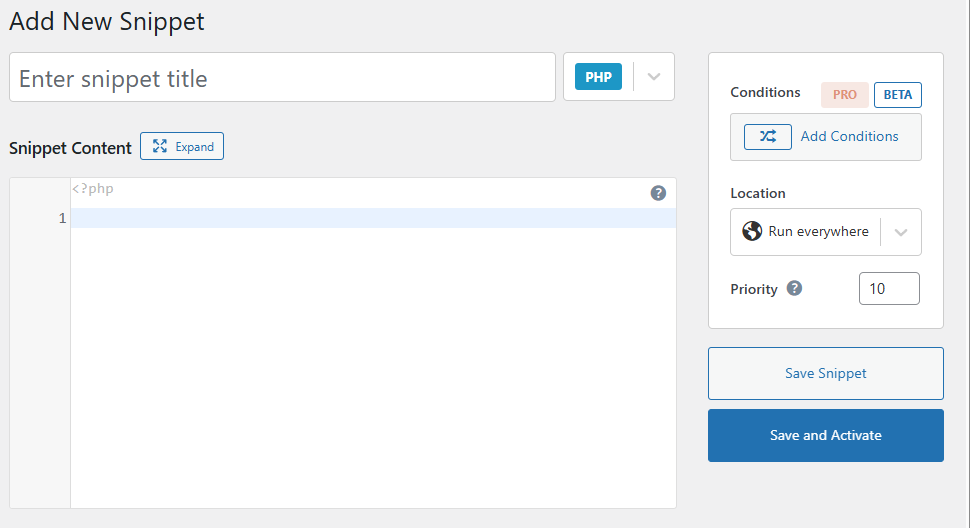
Name it something descriptive like Promptwatch crawler logs. Make sure the language is set to PHP and the scope is “Run everywhere”.
Get API Key
Get your Promptwatch API Key in the crawler logs -> settings tab:Add Code to New Snippet
Next you want to paste in the following code, be sure to replace YOUR_API_KEY with the key you copied from Promptwatch above./**
* Send crawler logs to PromptWatch (or external monitor).
* Hooks into 'shutdown' to ensure the page has finished processing.
*/
add_action('shutdown', 'send_crawler_log_to_external_api');
function send_crawler_log_to_external_api() {
// 1. Configuration
$api_url = 'https://logs.promptwatch.com/event';
$api_key = 'YOUR_API_KEY'; // <--- PASTE YOUR API KEY HERE
// 2. Capture the User Agent
$user_agent = isset($_SERVER['HTTP_USER_AGENT']) ? $_SERVER['HTTP_USER_AGENT'] : '';
// 3. (Optional) Filter: Only run if it detects a bot/crawler
// Remove this "if" block if you want to log ALL traffic, not just crawlers.
$is_crawler = preg_match('/(bot|crawl|slurp|spider|mediapartners)/i', $user_agent);
if ( ! $is_crawler ) {
return;
}
// 4. Gather Request Data
// We attempt to find the content type from headers sent, defaulting to text/html
$content_type = 'text/html';
$headers_list = headers_list();
foreach ($headers_list as $header) {
if (stripos($header, 'Content-Type:') === 0) {
$content_type = trim(substr($header, 13));
break;
}
}
$data = [
'status_code' => http_response_code(),
'request_method' => isset($_SERVER['REQUEST_METHOD']) ? $_SERVER['REQUEST_METHOD'] : 'GET',
'request_path' => parse_url($_SERVER['REQUEST_URI'], PHP_URL_PATH),
'query_string' => isset($_SERVER['QUERY_STRING']) ? $_SERVER['QUERY_STRING'] : '',
'content_type' => $content_type,
'client_ip' => isset($_SERVER['REMOTE_ADDR']) ? $_SERVER['REMOTE_ADDR'] : '',
'hostname' => isset($_SERVER['HTTP_HOST']) ? $_SERVER['HTTP_HOST'] : '',
'user_agent' => $user_agent,
'referrer' => isset($_SERVER['HTTP_REFERER']) ? $_SERVER['HTTP_REFERER'] : '',
];
// 5. Send Data using WordPress HTTP API
$args = [
'body' => json_encode($data),
'headers' => [
'Content-Type' => 'application/json',
'X-API-Key' => $api_key,
],
'timeout' => 5,
'blocking' => false, // CRITICAL: This ensures your site doesn't wait for the log to finish sending.
'data_format' => 'body',
'sslverify' => true,
];
wp_remote_post($api_url, $args);
}Test Your Result
You can open PowerShell in Windows by hitting Windows Key and type in powershell: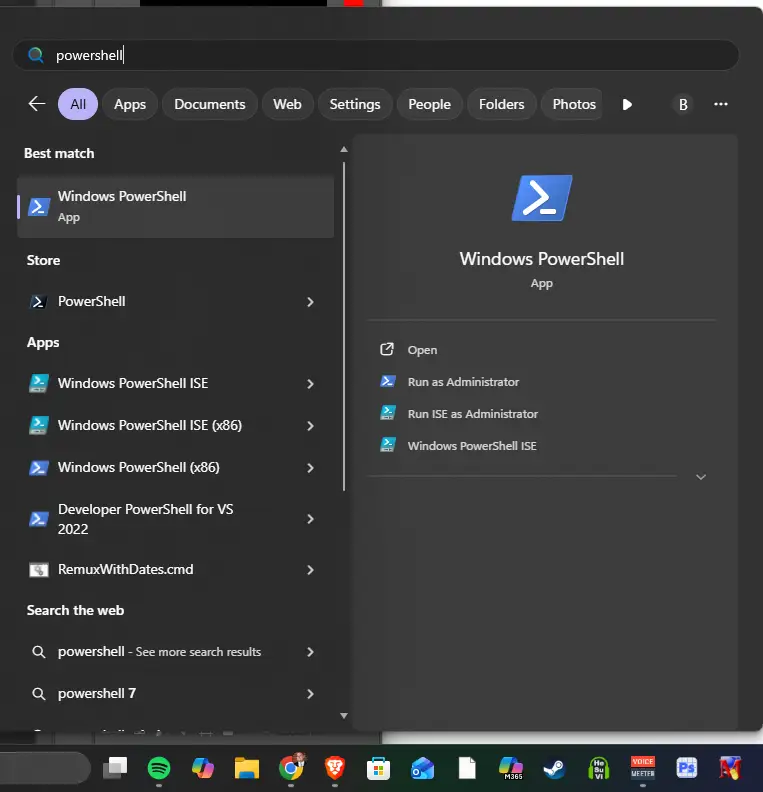
In powershell type:
Invoke-WebRequest -Uri "https://your-wordpress-site.com/" -UserAgent "GPTBot/1.0"and hit enter. Your Promptwatch crawler log should change from the default example log info to showing “Waiting for data.”
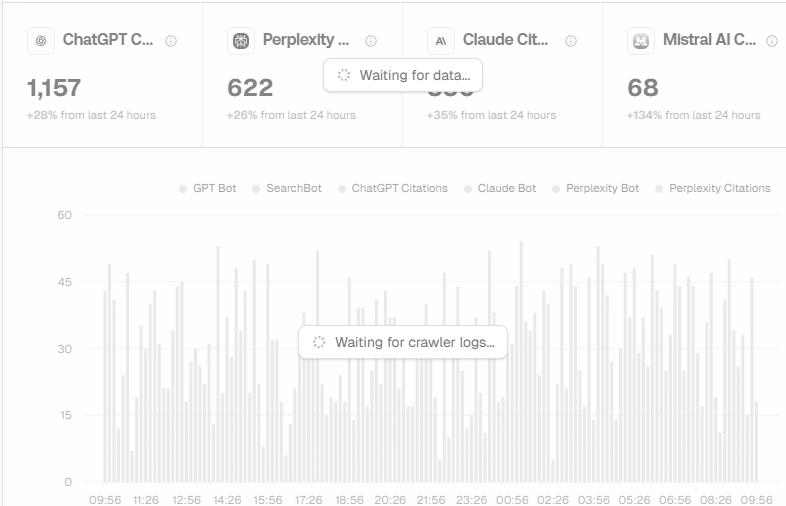
After a few minutes you should see GPTBot in your dashboard!
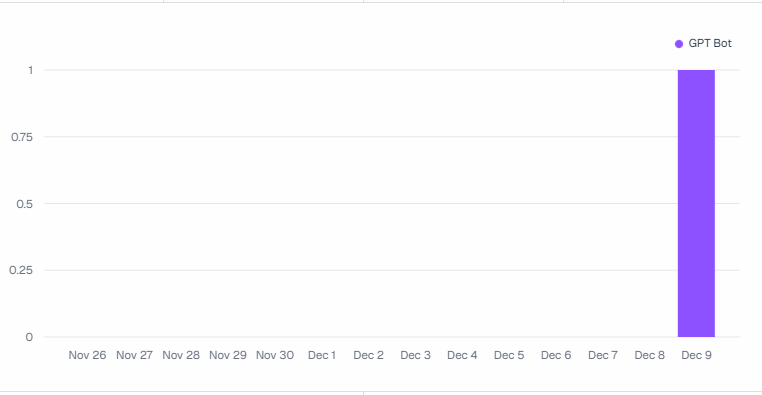
Troubleshooting
If you’re not seeing the GPTBot show up in the Promptwatch dashboard, caching may be causing a problem. If you’re using a WordPress Plugin like WPRocket or WP Optimize, you need to add the major AI Crawlers to the “Exclude from caching.”
WP Optimize
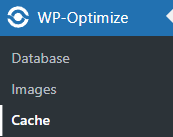
Go to WP Optimize -> Caching
Click on the Advanced Settings tab:
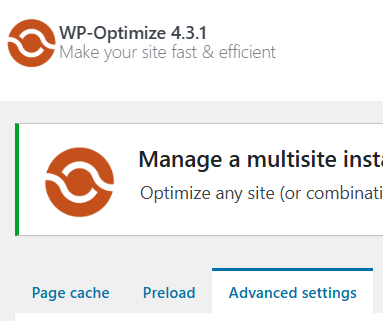
Scroll down to the “List of browser agent strings which, if detected, will prevent caching”
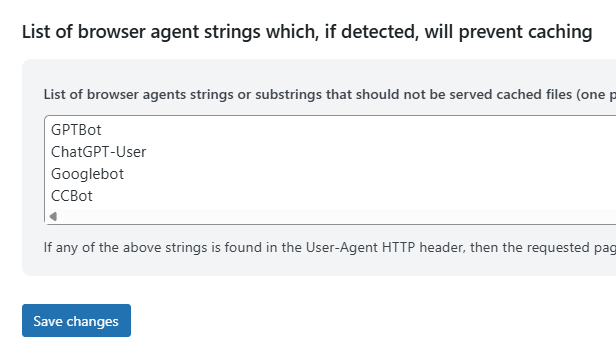
Add the following User Agents
GPTBot
ChatGPT-User
Googlebot
CCBot
WP Rocket
Go to WP Rocket -> Settings

Select Advanced Rules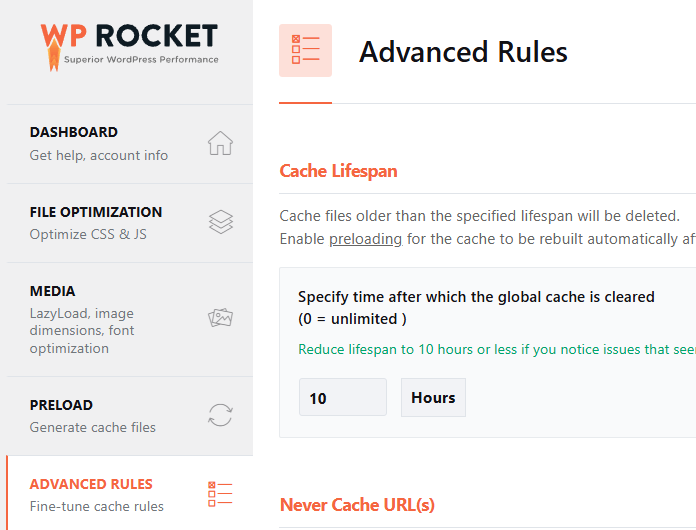
Scroll down to “Never Cache User Agent(s)” and enter the list of AI Bots listed above:
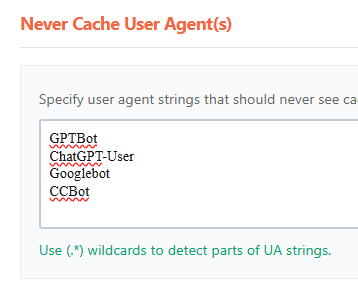
If you’re still having issues feel free to reach out and we’ll happily take a look!